
AI GIF generators compared: direct output, video conversion and code
On this page
Choose a direct AI GIF generator for short reactions, character gestures and illustrated loops. Choose video generation plus a GIF converter for longer, camera-driven motion. Choose code when timing and geometry must be reproducible. PictoGIF accepts text or eligible image references and downloads animated GIF files; its SVG mode downloads static vectors separately.
What this comparison does and does not measure
This guide is written by the PictoGIF team. External features were checked against the official pages listed below on November 11, 2026. This is a comparison of documented workflows, not a same-prompt quality ranking or speed benchmark.
A direct GIF download saves a conversion step. It does not guarantee smoother motion, better identity consistency or smaller files. Evaluate the downloaded result, not only the preview or the model name.
Compare the actual route to a GIF file
| Tool or workflow | Actual output | Useful controls | Access and limits |
|---|---|---|---|
| PictoGIF | Animated .gif from text or references; static .svg in a separate mode | Animation settings and local GIF captions | Get 3 free generations per day. Reference image generation requires credits. |
| Magic Hour GIF generator | Official generator offers GIF download from a text prompt | Prompt-led animation and iteration | Official page offers a no-sign-up entry. Check its current free and commercial-use conditions. |
| GPTGIF | Looping GIF from text or a photo | Frame-count choices and speed presets | Sign-up credits; cost varies with frames and input type. Check its live pricing table. |
| Video generation + Ezgif | Generate a video first, then convert it to .gif | Converter exposes size, frame rate, trim range and loop count | Two steps and separate generation costs. Conversion does not invent missing transparency or motion. |
| Python + Pillow | Programmatically draw or assemble .gif frames | Explicit frame delays, looping and palette handling | Requires a working code environment and animation logic. A model writing code is a separate step. |
Choose by the motion you need
For a waving mascot, blinking pet or reaction meme, begin with one visible action and a fixed camera. A short frame sequence is easier to inspect than a scene with several simultaneous changes.
For a complex moving camera or a longer realistic shot, start with a video workflow and assess the GIF after conversion. For a loading indicator or a precise geometric animation, code can make repeated revisions more predictable.
PictoGIF does not provide MP4 export or a dedicated GIF compressor. Its caption tool adds one caption across the animation; it is not a multi-scene subtitle timeline.
Verify a download before choosing a tool
- Download the original .gif, not the static cover, screenshot or MP4 preview.
- Inspect dimensions, frame count, per-frame delays, loop count and file size. A valid single-frame GIF is still an image, not an animated result.
- Watch the moving subject and the transition back to the first frame. Multiple frames alone do not prove useful movement or a seamless loop.
- Open the download in the destination app. Very short delays and playback behavior can differ between viewers.
See a text-generated GIF example
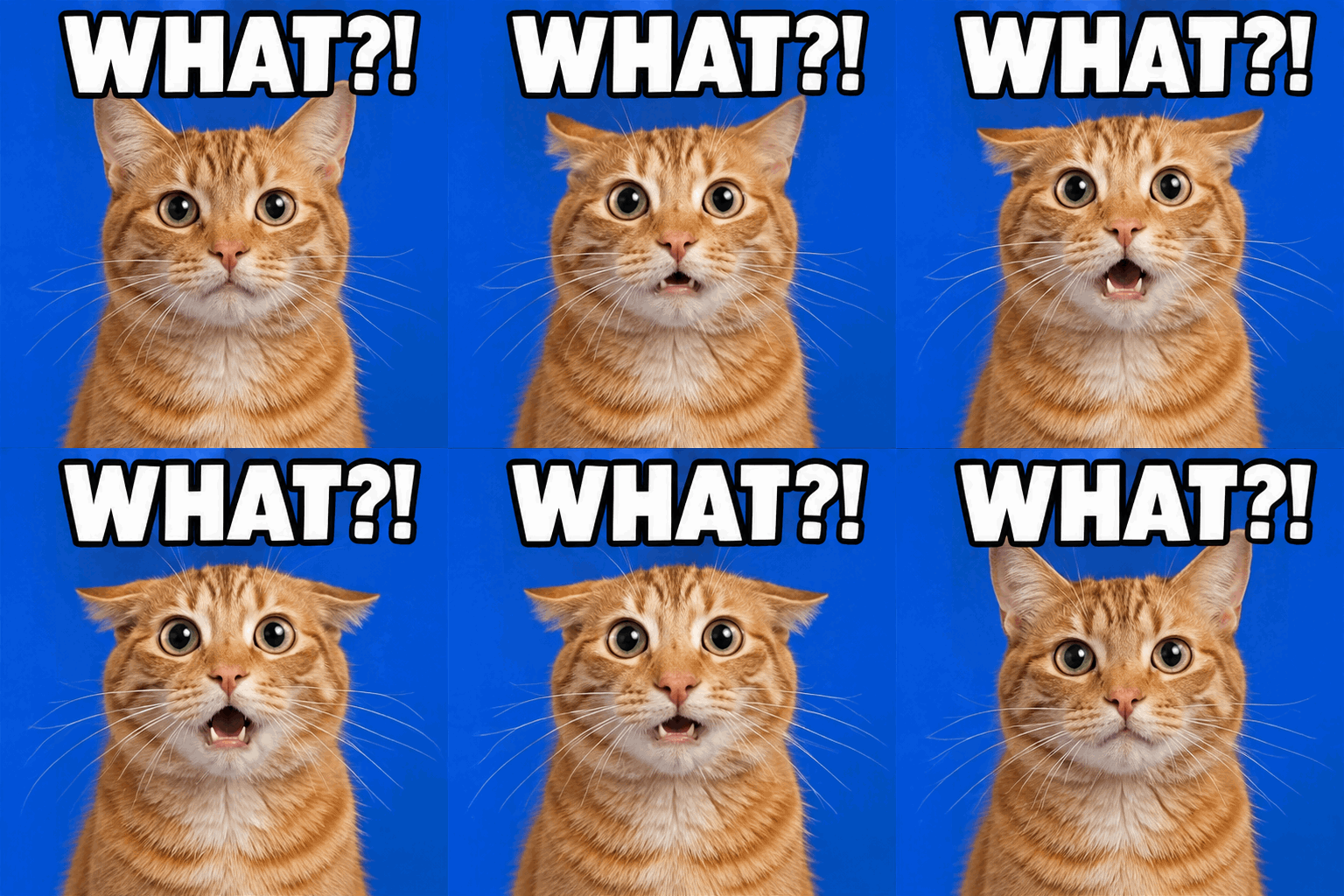
The example shows its animation settings and prompt.
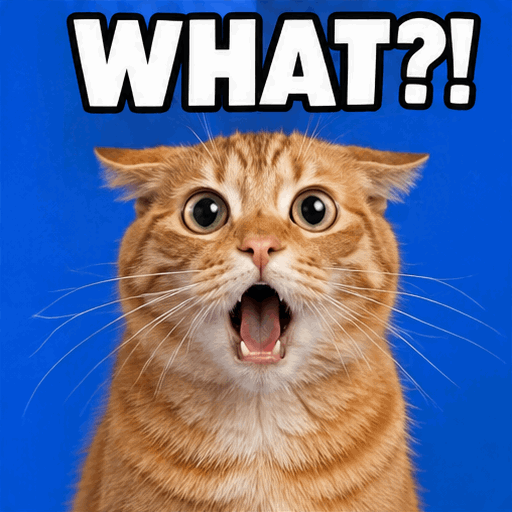
Wait... WHAT?!
- Auto ratio · 9 frames · 200 ms/frame
View prompt
Create a photorealistic orange tabby reaction GIF on a cobalt blue studio background. The cat widens its pupils, drops its mouth open and flicks its ears back, then returns to its surprised starting expression. Keep the cat's identity and camera framing stable. Fix bold white text with a black outline reading WHAT?! at the top in every frame. Square composition. Output an animated GIF with 9 frames at 200ms per frame, looping continuously.
Frame count, speed and transparency are different controls
A 9-frame file with a 200 ms delay per frame lasts 1.8 seconds per loop, equivalent to approximately 5 displayed frames per second. Reducing the delay plays those same frames faster; it does not add intermediate poses.
Aspect ratio is not an exact pixel-size promise. PictoGIF shares a total pixel budget across the generated frames, so more frames can reduce the dimensions of each frame.
GIF transparency is limited to fully transparent or fully opaque pixels. Asking for a plain background is not the same as receiving a transparent file. This guide does not promise transparent GIF output from PictoGIF.
Check free access before uploading a reference
Get 3 free generations per day. Reference image generation requires credits.
An active credit balance above zero is required for references. Accounts with available credits pay the displayed model price. Private creations and references are kept for 7 days, then automatically deleted together. The site-owned public samples on this page are separate from that private library.
Frequently asked questions
- Does direct GIF output always look better than video conversion?
- No. The route describes how the file is delivered. Motion, consistency, palette artifacts, file size and suitability must be checked on actual downloads.
- Can one tool generate both GIF and SVG?
- PictoGIF provides both in separate modes. GIF is a raster animation; PictoGIF SVG is a static vector file. This does not mean it converts an animated GIF into editable vector animation.
- Can I use PictoGIF as a built-in ChatGPT plugin?
- PictoGIF is an independent website. This guide does not provide a ChatGPT plugin or an integration that runs PictoGIF inside a chat.
- Which workflow should I try first?
- Try the simplest workflow matching the deliverable: direct GIF for short illustrated motion, video plus conversion for longer shots, and code for repeatable geometric animation. Verify one file before committing to a larger workflow.